How to Use Microsoft Word: 10 Essential Word Features sets the stage for this enthralling narrative, offering readers a glimpse into a story that is rich in detail with casual formal language style and brimming with originality from the outset.
Learn the ins and outs of Microsoft Word with this comprehensive guide that covers everything from formatting to collaboration tools.
Formatting Features

Using styles in Microsoft Word is crucial for maintaining consistency and efficiency in your documents. Styles allow you to easily apply formatting elements such as font size, color, and style throughout your document, ensuring a cohesive look. Additionally, they make it simple to make global changes to the formatting of your document by modifying the style definition.
Font Formatting Options
When working with text in Microsoft Word, you can customize the font size, color, and style to enhance the appearance of your document. Here are some common formatting options:
- Font Size: You can change the size of your text by selecting the desired font size from the font size dropdown menu in the Home tab.
- Font Color: To change the color of your text, select the text you want to modify and choose a color from the font color dropdown menu.
- Font Style: You can emphasize your text by applying different font styles such as bold, italic, or underline from the font style options in the Home tab.
Headers and Footers
Headers and footers are essential elements in a Word document, providing information that appears at the top and bottom of each page. Here’s how you can create and modify headers and footers:
- To insert a header or footer, go to the Insert tab, click on Header or Footer, and choose a preset design or create a custom header or footer.
- To edit a header or footer, double-click on the header or footer area to enter the editing mode. You can add text, images, page numbers, and other elements to customize your header or footer.
- To differentiate headers and footers on odd and even pages or the first page, use the options available in the Header & Footer Tools Design tab.
Collaboration Tools
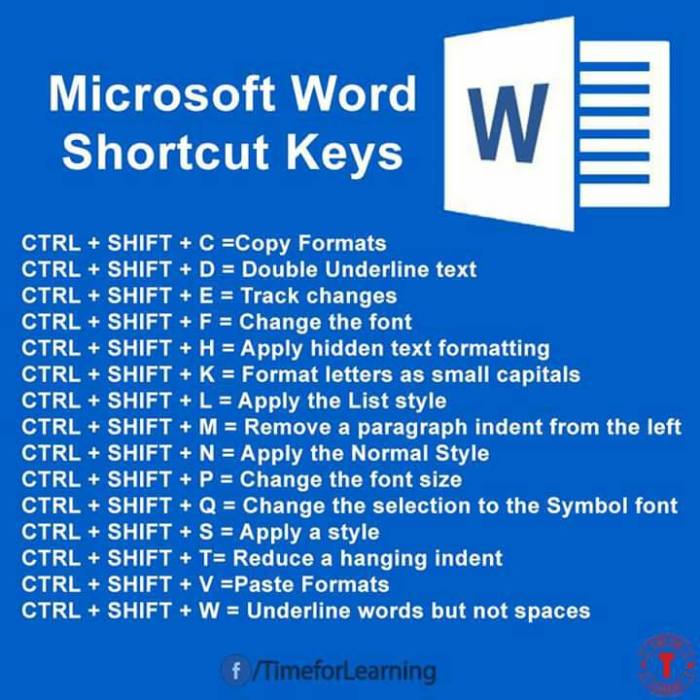
Collaboration is essential in modern workplaces, and Microsoft Word offers several tools to facilitate teamwork and editing processes. One of the key features for collaboration in Word is the ability to track changes and add comments, allowing multiple users to work on a document simultaneously and provide feedback effectively.
Track Changes and Comments
- Track Changes: This feature allows users to make edits to a document that are visible to others, showing additions, deletions, and formatting changes in different colors. It enables easy tracking of changes made by different collaborators.
- Comments: Users can insert comments at specific points in the document to provide feedback, suggestions, or ask questions. Comments are great for communication within the document without altering the original content.
Using the ‘Review’ Tab
The ‘Review’ tab in Microsoft Word is a powerful tool for editing and reviewing documents collaboratively. Here are some key functions you can utilize on the ‘Review’ tab:
- Track Changes: Enable or disable track changes, choose how changes are displayed, and accept or reject changes made by others.
- Comments: Add, reply to, or delete comments in the document to communicate with other collaborators effectively.
- Compare: Compare two versions of a document to see the differences highlighted, making it easier to merge changes from different versions.
- Spelling & Grammar: Run a spelling and grammar check to ensure the document is error-free before finalizing it.
Sharing Documents and Setting Permissions
- Sharing: Use the ‘Share’ option to invite others to collaborate on the document. You can share via email, link, or by inviting specific people directly.
- Permissions: Set permissions for each collaborator, such as allowing them to edit, comment, or only view the document. This helps in controlling access and maintaining document integrity.
Productivity Features
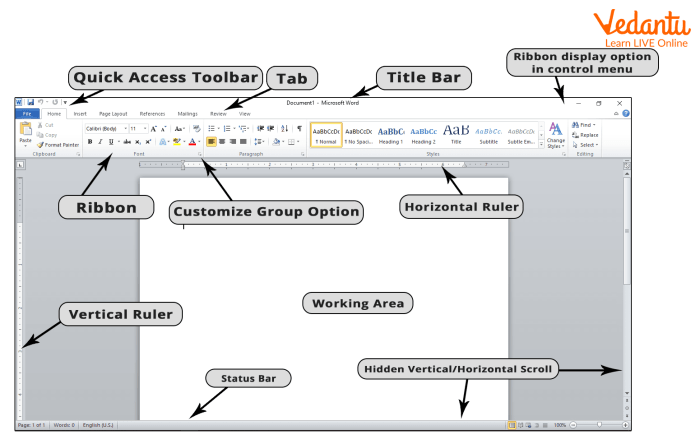
When it comes to maximizing your productivity in Microsoft Word, there are several key features that can help you work more efficiently. From using templates to creating tables of contents and customizing shortcuts, these tools can save you time and streamline your workflow.
Templates in Microsoft Word
Using templates in Microsoft Word can be a game-changer when it comes to saving time and effort. Templates are pre-designed documents that you can use as a starting point for your own work. Whether you need a resume, a newsletter, or a flyer, there are templates available for a wide range of document types. By using templates, you can skip the formatting and design work and jump right into adding your content, ultimately speeding up the document creation process.
Creating and Updating a Table of Contents
Creating a table of contents in Microsoft Word is essential for longer documents, as it provides a roadmap for readers to navigate through your content. To create a table of contents, you can use the built-in formatting styles to designate headings and subheadings. Once your document is properly formatted, you can insert a table of contents that will automatically update as you make changes to the document. This feature saves you the time and effort of manually updating the table of contents every time you make edits.
Shortcuts and Customizing the Quick Access Toolbar
Utilizing shortcuts and customizing the Quick Access Toolbar in Microsoft Word can significantly increase your productivity. By learning and using keyboard shortcuts for common tasks, you can perform actions more quickly than clicking through menus. Additionally, customizing the Quick Access Toolbar allows you to add your most frequently used commands for easy access. This personalized toolbar can save you time and reduce the number of clicks it takes to complete tasks, making your workflow more efficient.
Last Point
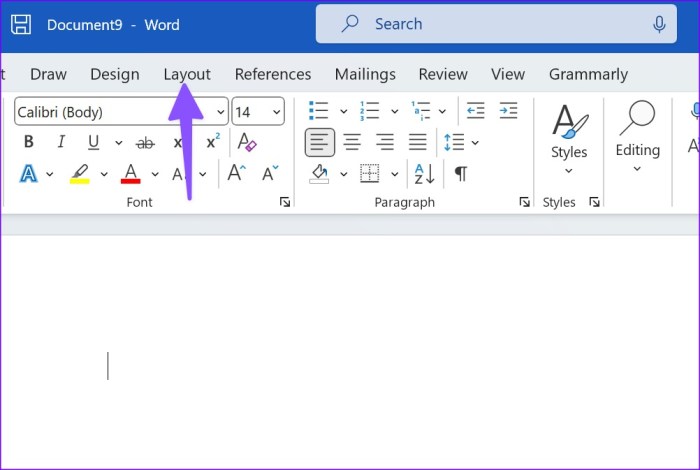
Mastering these essential Word features will undoubtedly elevate your document creation skills and streamline your work process. Embrace the power of Microsoft Word and unleash your creativity!