Starting with How to Use Google Slides: 5 Tips for Creating Engaging Presentations, the content dives into a captivating exploration of crafting compelling slides that captivate your audience.
Exploring the key features and strategies that make Google Slides a powerful tool for creating dynamic presentations.
Overview of Google Slides
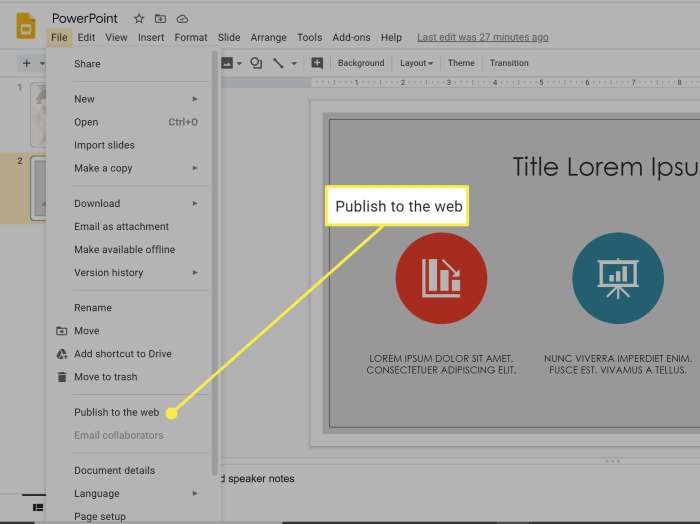
Google Slides is a cloud-based presentation software developed by Google as part of the Google Workspace productivity suite. It was first introduced in 2006 as part of Google Docs and has since become a popular tool for creating engaging presentations.
Brief History of Google Slides
Google Slides was initially launched as part of Google Docs, offering users a way to create and edit presentations online. Over the years, Google has continuously updated and improved the features of Google Slides to enhance user experience and functionality.
Features and Benefits of Using Google Slides
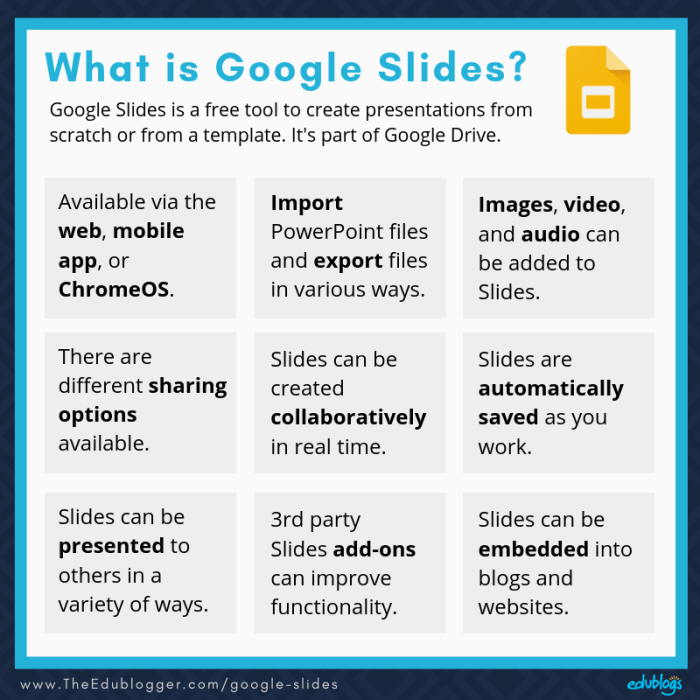
- Collaboration: Google Slides allows multiple users to work on a presentation simultaneously, making it ideal for team projects and real-time editing.
- Cloud-Based: As a cloud-based tool, Google Slides enables users to access and edit presentations from any device with an internet connection, promoting flexibility and convenience.
- Integration: Google Slides seamlessly integrates with other Google Workspace apps such as Google Drive, Docs, and Sheets, simplifying workflow and file sharing.
- Templates: Google Slides offers a variety of pre-designed templates to choose from, saving time and effort in creating visually appealing presentations.
- Sharing Options: Users can easily share their presentations with others via email, link, or social media, allowing for widespread distribution and feedback.
Comparison with Other Presentation Software
Google Slides competes with other popular presentation software such as Microsoft PowerPoint and Apple Keynote. While each tool has its unique features and advantages, Google Slides stands out for its collaborative capabilities, cloud-based accessibility, and seamless integration with other Google Workspace apps.
Tips for Creating Engaging Presentations
Creating engaging presentations is essential to captivate your audience and effectively deliver your message. Here are some tips to help you enhance your Google Slides presentations:
Utilizing pre-designed templates for a professional look
Using pre-designed templates in Google Slides can save you time and give your presentation a polished and professional appearance. These templates are designed by professionals and offer a variety of layouts, color schemes, and fonts to choose from. By selecting a template that aligns with your topic and audience, you can create a visually appealing presentation that captures attention.
Incorporating multimedia elements like images, videos, and audio
Adding multimedia elements to your presentation can make it more dynamic and engaging. Images, videos, and audio clips can help illustrate key points, break up text-heavy slides, and keep your audience interested. Make sure to use high-quality media files that are relevant to your content and enhance the overall message you are trying to convey.
Using animations and transitions effectively to enhance the presentation
Animations and transitions can add visual interest to your slides and make the presentation more interactive. However, it’s essential to use them judiciously and purposefully. Avoid overloading your slides with excessive animations that can distract from your message. Instead, use subtle animations and transitions to emphasize key points or guide the audience’s focus. Experiment with different effects to find the right balance for your presentation.
Collaboration and Sharing Features
Collaboration and sharing are essential aspects of working on presentations with others. Google Slides offers a range of features to facilitate group work and control access to your presentations.
Real-Time Collaboration Options
- Multiple users can edit a presentation simultaneously, making it easy to work on projects together in real-time.
- Chat and commenting features allow collaborators to communicate and provide feedback directly within the presentation.
- Version history enables users to see changes made by each collaborator and revert to previous versions if needed.
Sharing Settings and Permissions
- Users can control who has access to the presentation by adjusting sharing settings to allow specific people or groups to view, comment, or edit the presentation.
- Permission levels can be set to restrict editing capabilities for certain users, ensuring data security and preventing unauthorized changes.
- Links can be shared with individuals or groups, making it easy to distribute the presentation without granting direct access.
Integration with Other Google Workspace Tools
- Google Slides seamlessly integrates with other Google Workspace tools like Docs and Sheets, allowing for easy import of content and data.
- Users can embed Google Sheets charts or tables directly into a presentation, keeping data up to date and synchronized across platforms.
- Collaborators can work across multiple tools within the same workspace, streamlining workflow and enhancing productivity.
Closing Notes
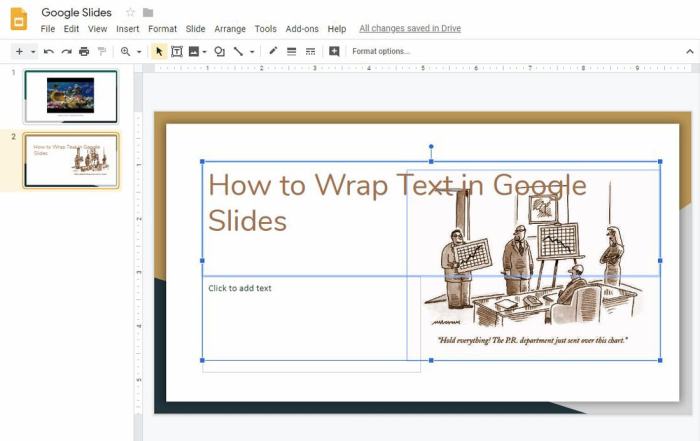
In conclusion, mastering the art of using Google Slides with these 5 tips can elevate your presentation game and leave a lasting impact on your viewers.