Embark on a journey into mastering Canva with these 10 design tips for creating compelling visual content. Dive into the world of graphic design with this essential guide.
Learn how to leverage Canva’s features to enhance your designs and captivate your audience effortlessly.
Introduction to Canva
Canva is a user-friendly graphic design platform that allows individuals and businesses to create a wide range of visual content. From social media graphics and presentations to posters and logos, Canva offers a variety of templates and tools to help users bring their creative ideas to life.
Key Features of Canva
- Templates: Canva provides a vast library of templates for different types of visual content, making it easy for users to get started quickly.
- Drag-and-Drop Interface: The platform offers a simple drag-and-drop interface, allowing users to easily customize their designs without any design experience.
- Design Elements: Canva includes a wide range of design elements such as images, icons, fonts, and illustrations to enhance visual content.
- Collaboration Tools: Users can collaborate with team members by sharing designs and collecting feedback directly within Canva.
- Export Options: Canva allows users to export their designs in various formats, suitable for different platforms and purposes.
User Interface and Basic Functionalities
Canva’s user interface is intuitive and user-friendly, making it accessible to both beginners and experienced designers. The basic functionalities of Canva include:
- Creating New Designs: Users can start by selecting a template or creating a custom design from scratch.
- Editing Tools: Canva offers a range of editing tools to adjust images, text, colors, and other design elements.
- Organizational Features: Users can organize their designs into folders, making it easy to manage multiple projects.
- Integration: Canva integrates with other tools such as Google Drive and Dropbox for seamless workflow.
Design Tips for Beginners
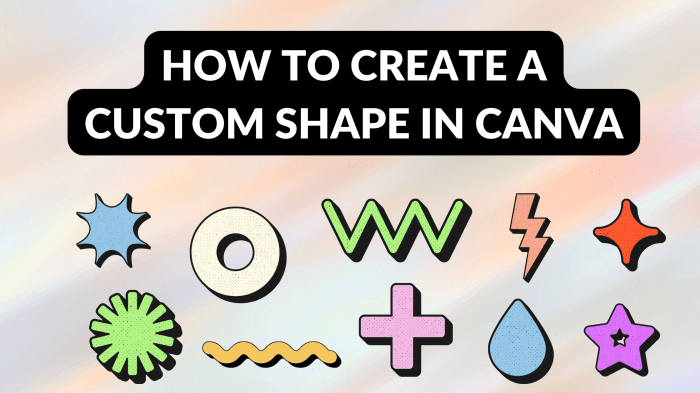
When starting out with Canva, here are some essential design tips to help you create visually appealing content:
Selecting the Right Template
Choosing the right template is crucial for a successful design. Consider the purpose of your project and the style you want to achieve. Canva offers a wide range of templates for various types of projects, so take your time to explore and find the one that best fits your needs.
Customizing Colors, Fonts, and Elements
- Use a consistent color palette to maintain visual harmony throughout your design. Canva allows you to easily customize colors to match your branding or create a specific mood.
- Experiment with different fonts to find the perfect combination for your text. Make sure to choose fonts that are easy to read and complement each other.
- Add elements such as shapes, icons, and illustrations to enhance your design. Be mindful of spacing and alignment to create a polished look.
Creating Visually Appealing Layouts and Compositions
- Follow the rule of thirds to create balanced compositions. Place key elements along the gridlines or at the intersections for a visually pleasing layout.
- Use white space effectively to help guide the viewer’s eye and prevent clutter. Give your design room to breathe for a clean and modern look.
- Pay attention to visual hierarchy by using different sizes, colors, and fonts to emphasize important information. Guide the viewer through your design with a clear hierarchy of elements.
Advanced Design Techniques
When it comes to taking your Canva designs to the next level, incorporating advanced techniques can make a big difference. Let’s explore some key strategies to enhance your visual content.
Utilizing Layers and Transparency
Layers and transparency are powerful tools in Canva that allow you to create depth and dimension in your designs. By arranging elements on different layers, you can control the placement and visibility of each component. Adjusting transparency levels can also help you achieve unique effects and blend elements seamlessly.
Incorporating Animations and Interactive Elements
Adding animations and interactive elements to your designs can make them more engaging and dynamic. Canva offers a range of animation effects that you can apply to elements like text, graphics, and images. Additionally, you can create interactive designs by adding clickable buttons, links, and other interactive features to enhance user experience.
Collaborating with Team Members
Collaborating with team members on design projects in Canva can streamline the workflow and ensure a cohesive final product. Canva allows you to easily share designs with others, assign tasks, and leave comments for feedback. By working collaboratively, you can leverage the skills and creativity of your team to produce visually stunning content.
Closing Summary

In conclusion, armed with these design tips, you’re equipped to elevate your visual content creation game to new heights. Enhance your projects and leave a lasting impact on your audience with Canva’s versatile tools.