Diving into How to Use Adobe Illustrator: 8 Tips for Vector Graphics, this introduction immerses readers in a unique and compelling narrative, offering insights into the world of vector graphics and Adobe Illustrator. From the essential tools to working with layers and groups, this guide will equip you with the knowledge needed to create stunning designs.
Introduction to Adobe Illustrator
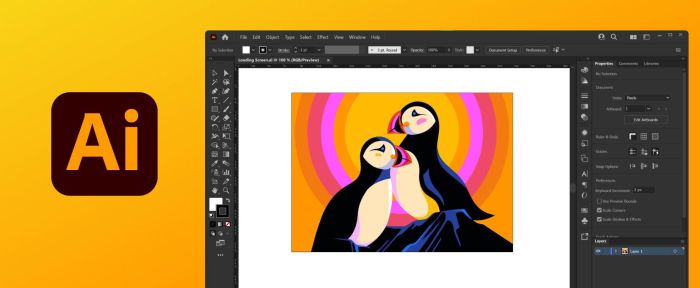
Adobe Illustrator is a popular vector graphics editor developed and marketed by Adobe Inc. Its primary purpose is to create and edit vector graphics such as illustrations, logos, icons, typography, and complex artwork.
Why Adobe Illustrator is Popular for Creating Vector Graphics
Adobe Illustrator is widely used for creating vector graphics due to its powerful tools and features that allow designers to create scalable and high-quality artwork. Unlike raster graphics, which are made up of pixels and can lose quality when resized, vector graphics are based on mathematical equations, making them infinitely scalable without losing quality.
- Adobe Illustrator offers precision and control over design elements, making it ideal for creating detailed and intricate artwork.
- The software provides a wide range of tools for drawing, painting, and typography, allowing designers to unleash their creativity.
- Vector graphics created in Adobe Illustrator can be easily edited, modified, and reused without losing quality, making it a versatile tool for design projects.
The Importance of Vector Graphics in Design Projects
Vector graphics play a crucial role in design projects for various reasons:
- Vector graphics are resolution-independent, meaning they can be scaled to any size without losing quality, making them ideal for printing and digital media.
- They are lightweight files compared to raster graphics, which helps in faster loading times on websites and reduces storage space.
- Vector graphics are essential for creating logos, icons, and illustrations that require scalability and precision in design.
Basic Tools and Functions
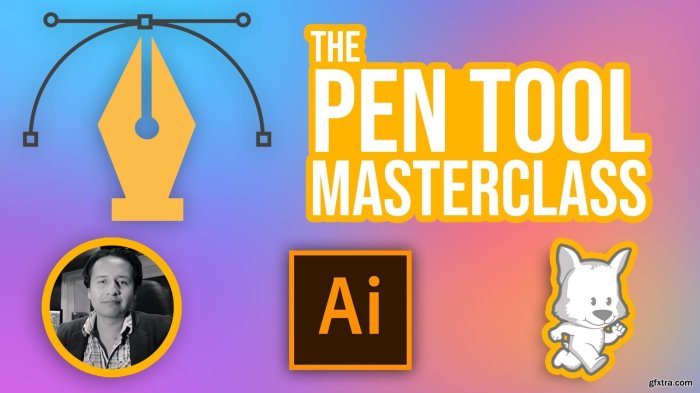
Adobe Illustrator provides a variety of essential tools for creating vector graphics. These tools are crucial for designing custom shapes, applying colors, and enhancing the overall visual appeal of your artwork.
Pen Tool
The Pen tool in Adobe Illustrator is a fundamental tool for drawing custom shapes and paths. To use the Pen tool effectively, simply click to create anchor points and adjust the direction handles to control the curvature of the lines. This tool gives you the flexibility to create precise and intricate shapes with ease.
Fills and Strokes
When working with vector objects in Adobe Illustrator, you can apply fills and strokes to enhance the appearance of your artwork. Fills refer to the color or pattern inside a shape, while strokes define the Artikel of the shape. By selecting the desired fill and stroke options, you can customize the look of your vector objects and make them stand out in your designs.
Working with Layers and Groups

Layers and groups play a crucial role in organizing and managing artwork in Adobe Illustrator. Layers allow you to separate different elements of your design, making it easier to edit and manipulate specific parts without affecting others. Groups, on the other hand, enable you to combine multiple objects into a single entity, simplifying the editing process.
Creating, Deleting, and Rearranging Layers
Creating a new layer in Adobe Illustrator is simple. Just go to the Layers panel and click on the “New Layer” button. To delete a layer, select it and click on the trash icon at the bottom of the Layers panel. Rearranging layers can be done by dragging and dropping them in the Layers panel to change their order.
- To create a new layer, go to the Layers panel and click on the “New Layer” button.
- To delete a layer, select it in the Layers panel and click on the trash icon at the bottom.
- Rearrange layers by dragging and dropping them in the Layers panel to change their stacking order.
Properly organizing your artwork into layers can save you time and effort when making changes or adjustments.
Grouping Objects Together
Grouping objects in Adobe Illustrator allows you to treat multiple elements as a single unit. This can be useful when you want to move, resize, or apply effects to several objects at once without affecting others.
- To group objects, select the elements you want to group, then go to Object > Group or press Ctrl/Cmd + G.
- To ungroup objects, select the group and go to Object > Ungroup or press Shift + Ctrl/Cmd + G.
- You can also isolate objects within a group for editing by double-clicking on the group.
Grouping objects together can streamline your workflow and make complex designs more manageable.
Final Conclusion
In conclusion, mastering Adobe Illustrator and the tips provided for vector graphics opens up a world of creative possibilities. By understanding the basics and diving into advanced techniques, you can elevate your design projects to new heights. So, grab your digital pen and start creating masterpieces today!