Embark on a journey through the collaborative world of Google Docs, exploring its dynamic features and functionalities for seamless teamwork and productivity. Dive into the realm of real-time editing, version history, and more as we uncover the essence of efficient collaboration.
Discover how Google Docs revolutionizes the way teams work together, enhancing communication and streamlining workflows for unparalleled success.
Overview of Google Docs Collaborative Features
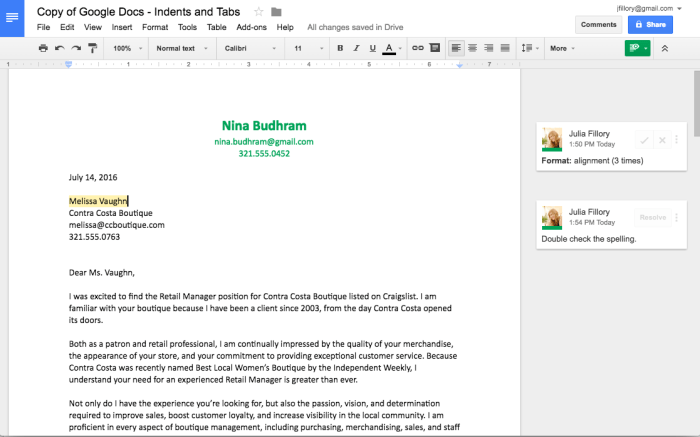
Google Docs is a cloud-based document creation, editing, and collaboration tool developed by Google. Its main purpose is to enable multiple users to work together in real-time on documents, spreadsheets, and presentations from any device with internet access.
Collaborating on Google Docs offers numerous benefits, such as seamless communication, instant updates, and the ability to track changes made by different users. It eliminates the need for emailing documents back and forth, ensuring everyone is working on the latest version. Additionally, users can leave comments, suggest edits, and work simultaneously on the same document, enhancing productivity and teamwork.
Industries such as education, business, and non-profit organizations commonly utilize Google Docs for collaboration. In education, students can work together on group projects or share study materials. Businesses use Google Docs for creating reports, proposals, and marketing materials collaboratively. Non-profit organizations benefit from the platform for sharing resources, coordinating events, and drafting grant proposals efficiently.
Real-time Editing and Comments
Real-time editing and commenting features in Google Docs enhance collaboration among team members by allowing them to work on the same document simultaneously and provide feedback instantly.
Real-time Editing
Real-time editing in Google Docs enables multiple users to edit a document simultaneously. Changes made by one user are instantly visible to others, with each user’s edits highlighted in a specific color. This feature allows team members to work together seamlessly without the need for constant file sharing or version control.
Leaving Comments
Users can leave comments on specific sections of a Google Docs document to provide feedback, suggestions, or ask questions. Comments can be added by selecting the text and clicking on the comment icon, allowing for clear communication and collaboration within the document. Additionally, users can resolve comments once they have been addressed, keeping the document organized and updated.
Advantages of Real-time Collaboration
– Improved Communication: Real-time editing and comments facilitate instant communication among team members, leading to quicker decision-making and feedback exchange.
– Increased Productivity: Collaborating in real-time eliminates the need for back-and-forth emails or meetings, allowing team members to work efficiently and focus on the task at hand.
– Enhanced Collaboration: Team projects benefit from real-time collaboration as members can work together seamlessly, share ideas, and provide input without delays.
– Version Control: Real-time editing ensures that everyone is working on the most up-to-date version of the document, reducing the risk of errors or conflicting changes.
Version History and Suggested Edits
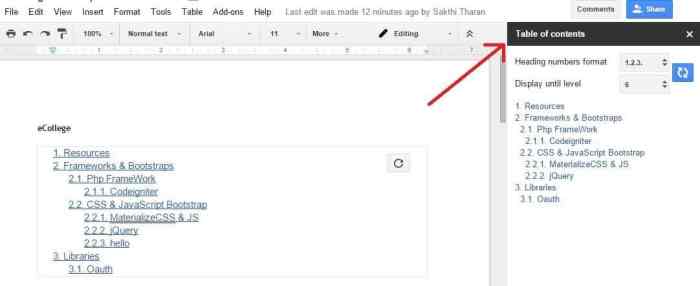
When working collaboratively on a document, keeping track of changes and edits is crucial to maintain the integrity and accuracy of the content. Google Docs offers features like Version History and Suggested Edits to streamline this process.
Accessing Version History
To access the Version History in Google Docs, simply click on “File” in the menu bar, then select “Version History” and click on “See Version History.” This will show you a detailed list of all the changes made to the document over time, allowing you to review and revert to previous versions if needed.
Suggested Edits Feature
The Suggested Edits feature in Google Docs allows collaborators to make edits to a document without directly changing the original content. Instead, their suggestions appear as comments or highlighted text, which can be reviewed and accepted or rejected by the document owner.
- To suggest an edit, collaborators can highlight the text they want to change, then right-click and select “Suggest Edits.”
- The suggested edit will appear as a comment in the margin, allowing the document owner to review the changes before accepting them.
- Collaborators can also leave comments explaining their suggested edits to provide context to the document owner.
Best Practices for Reviewing Changes
When reviewing changes and suggested edits in Google Docs, it is essential to follow best practices to ensure a smooth collaborative process.
- Regularly check the Version History to track changes and revert to previous versions if necessary.
- Review suggested edits carefully, considering the context and impact on the overall document.
- Communicate with collaborators to clarify any suggested edits or provide feedback on changes.
- Accept or reject edits promptly to avoid confusion and maintain document consistency.
Final Wrap-Up

Unveiling the power of Google Docs: 7 Collaborative Features, we have delved into the intricacies of modern teamwork tools. From real-time editing to version history, this discussion has shed light on the path to effective collaboration in today’s fast-paced digital landscape.